IN:

  • 00DAYS
  • 00HOURS
  • 00MINUTES

Mobile App

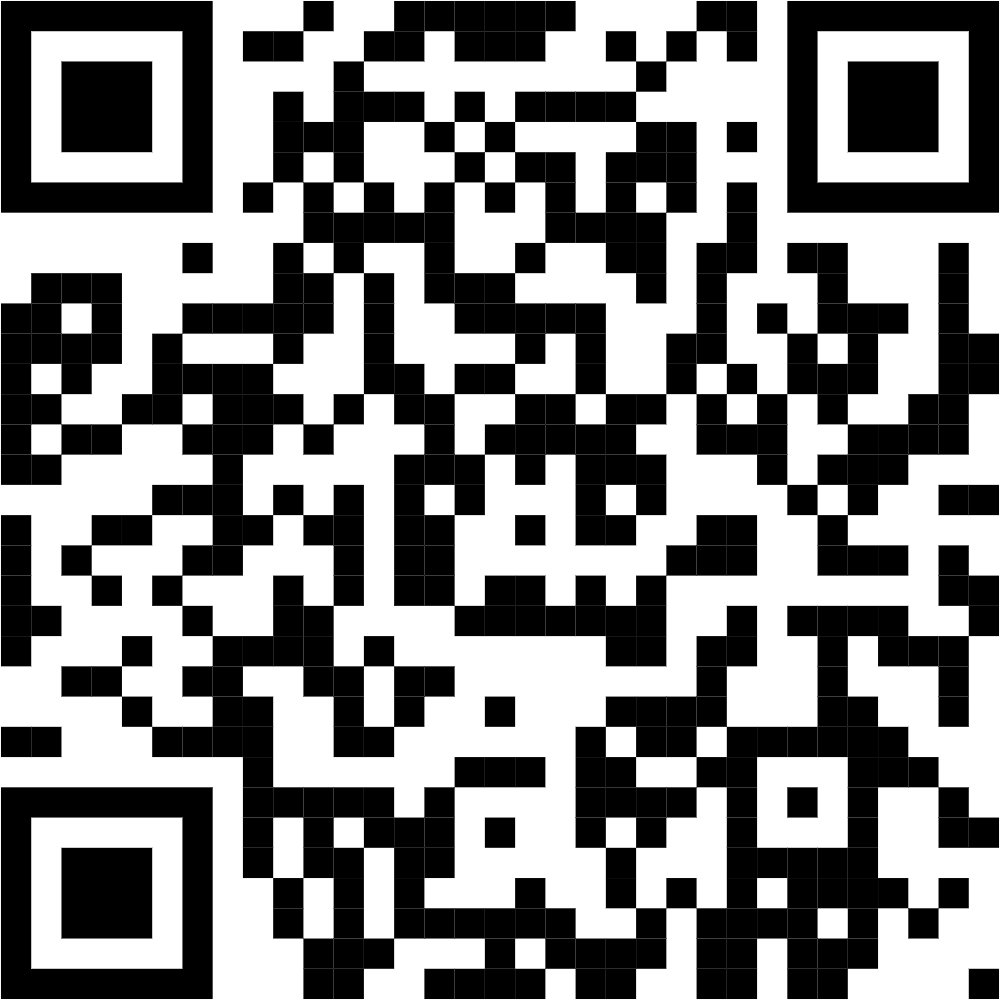
scan to download the application

Ιnstallation instructions

Step 1: Open Safari
  • The App must be opened in Safari 
Step 2: Open the PWA URL
  • Visit the App website (e.g., https://yourpwa.com).
Step 3: Tap the “Share” Button
  • At the bottom of the screen, tap the Share icon (📤 square with an arrow).
Step 4: Select “Add to Home Screen”
  • Scroll down in the Share Sheet and tap “Add to Home Screen”.
Step 5: Confirm and Install
  • A preview of the app name and icon appears.
  • Tap “Add” (top right corner).
Step 6: Open the Installed PWA
  • The PWA will now appear on the home screen like a native app.
  • Tap the icon to launch it in a standalone mode (without Safari UI).
Method 1: Automatic Install Prompt
 
Step 1: Open the App URL
  • Visit the App website in Chrome (or Edge, Firefox, Brave, etc.).
Step 2: Look for the Install Prompt
  • A “Install App” button should appear at the bottom.
  • Tap “Install” and the app will be added to the home screen.

Method 2: Manual Installation (If No Button Appears)
If the button doesn’t appear automatically, users can install the App manually:
Step 1: Open Chrome’s Menu
  • Tap the three-dot menu (⋮) in the top-right corner.
Step 2: Tap “Install App” or “Add to Home Screen”
  • Tap it.
Step 3: Confirm Installation
  • Tap “Install”, and the App will be added to the home screen.
Step 4: Open the App
Beyond
Privacy Overview

This website uses cookies so that we can provide you with the best user experience possible. Cookie information is stored in your browser and performs functions such as recognising you when you return to our website and helping our team to understand which sections of the website you find most interesting and useful.